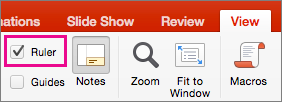
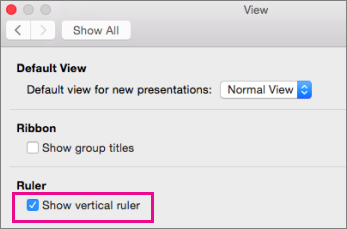
The ruler provides visual cues to help you place text and slide objects. When you don't need it anymore, you can hide the ruler.
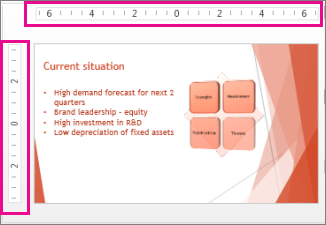
There are two rulers in PowerPoint: one displays horizontally at the top of the active slide, and the other displays vertically along the left edge of the slide (shown below).
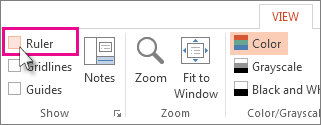
To show the ruler, click View, and in the Show group, check Ruler.
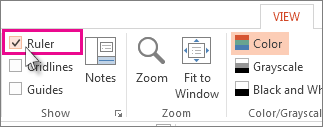
To hide the ruler, click View, and in the Show group, clear the Ruler box.
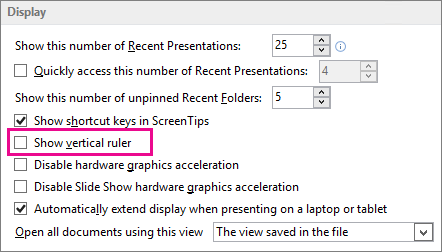
To permanently hide the vertical ruler, click File > Options > Advanced, scroll down to the Display section, and clear the Show vertical ruler box.
Tip
The ruler is not available in all views, such as Slide Sorter view. If the Ruler box is grayed out, try switching to Normal view.