
You start a print job, but you want to cancel it. You can try to stop printing either directly from Excel or from Windows. However, you can cancel printing from your computer only if the job isn't entirely sent to the printer.
Cancel a print job in Excel
When you choose Print in Excel, the following dialog box briefly appears.
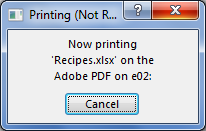
You can select Cancel at this point. If the printing dialog box disappears too quickly, you can try canceling the print job in Windows.
Cancel printing from Windows
On the Windows taskbar, at the bottom-right corner of the screen, right-click the Printer icon
 . If the icon isn't visible, select the arrow on the taskbar to show hidden icons. If you still don't see the printer icon, the print job is already sent to the printer, and it's too late to stop printing in Windows. You can try stopping the print job at the printer.
Select Open All Active Printers.
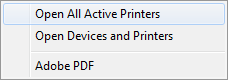
In the Active Printers dialog box, select the printer you want.
In the printer dialog box, select the print job you want to cancel.
Note
If you're using Windows 10 or 11, you might need to select the printer you're using first.
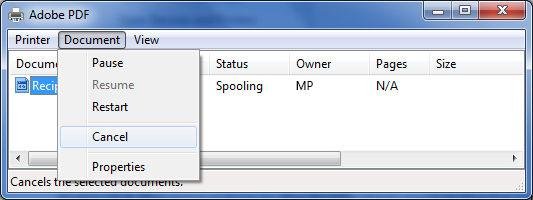
Select Document > Cancel.
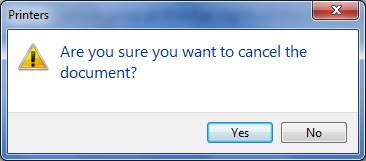
Select Yes to confirm that you want to cancel the print job.
Wait for the print job to disappear from the print job queue and then close the printer's dialog box.
If your print job no longer appears in the queue, or if it's fully sent to the printer, you might need to intervene at the printer itself, which might have its own cancel function available.