
Using a high dots-per-inch (dpi) resolution for printing produces quality printing results, but it might take longer to print. You can change the resolution settings to a lower dpi setting, depending on the type of printer that you use. If the printer that you use supports draft quality printing, you can specify draft quality for faster printing instead.
Change the print resolution
Select the worksheet for which you want to change the print resolution.
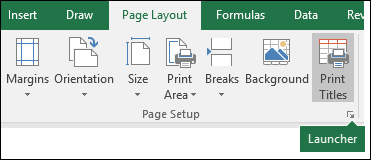
a. On the Page Layout tab, in the Page Setup group, select the Launcher
 .
.
b. On the Page tab, in the Print quality box, select the resolution that you want to use.
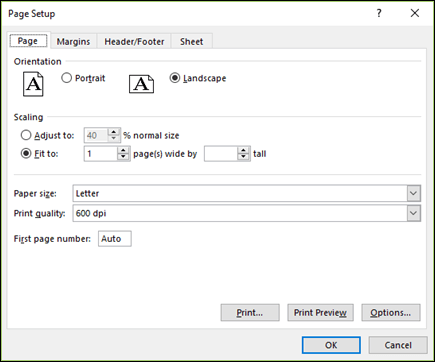
Note
The dpi settings that are available depend on the type of printer that you're using.
Specify draft quality printing
Select the worksheet that you want to print by using draft quality printing.
a. On the Page Layout tab, in the Page Setup group, select the Launcher
.
b. On the Sheet tab, under Print, select the Draft quality check box.
Need more help?
You can always ask an expert in the Excel Tech Community or get support in Communities.