
When you want to share files with a different team of people, or even give other teams ownership, you can copy (or move) files between OneDrive for work or school and a Microsoft SharePoint site. You can copy (or move) files and folders from OneDrive to SharePoint, from SharePoint to OneDrive, within a SharePoint site, or between sites. You can even copy files from someone else's OneDrive to your own OneDrive.
Tip
You can also copy your files via File Explorer. For more information (using OneDrive to OneDrive for work or school as the example), refer to Move files from OneDrive to OneDrive for work or school.
Learn more about copying files or folders within SharePoint, as well as Should I save files to OneDrive or SharePoint?
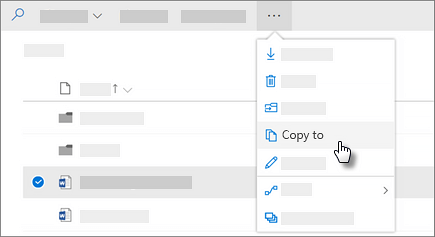
Select the files or folders that you want to copy, and then select Copy to.
Note
If you don't see the Copy to command, you're probably using classic OneDrive for work or school or an on-premises instance of OneDrive for work or school. If so, follow the SharePoint 2016 steps to move or copy files within or between sites.
Select the location you want to copy to. Sites appear under the Quick Access section.
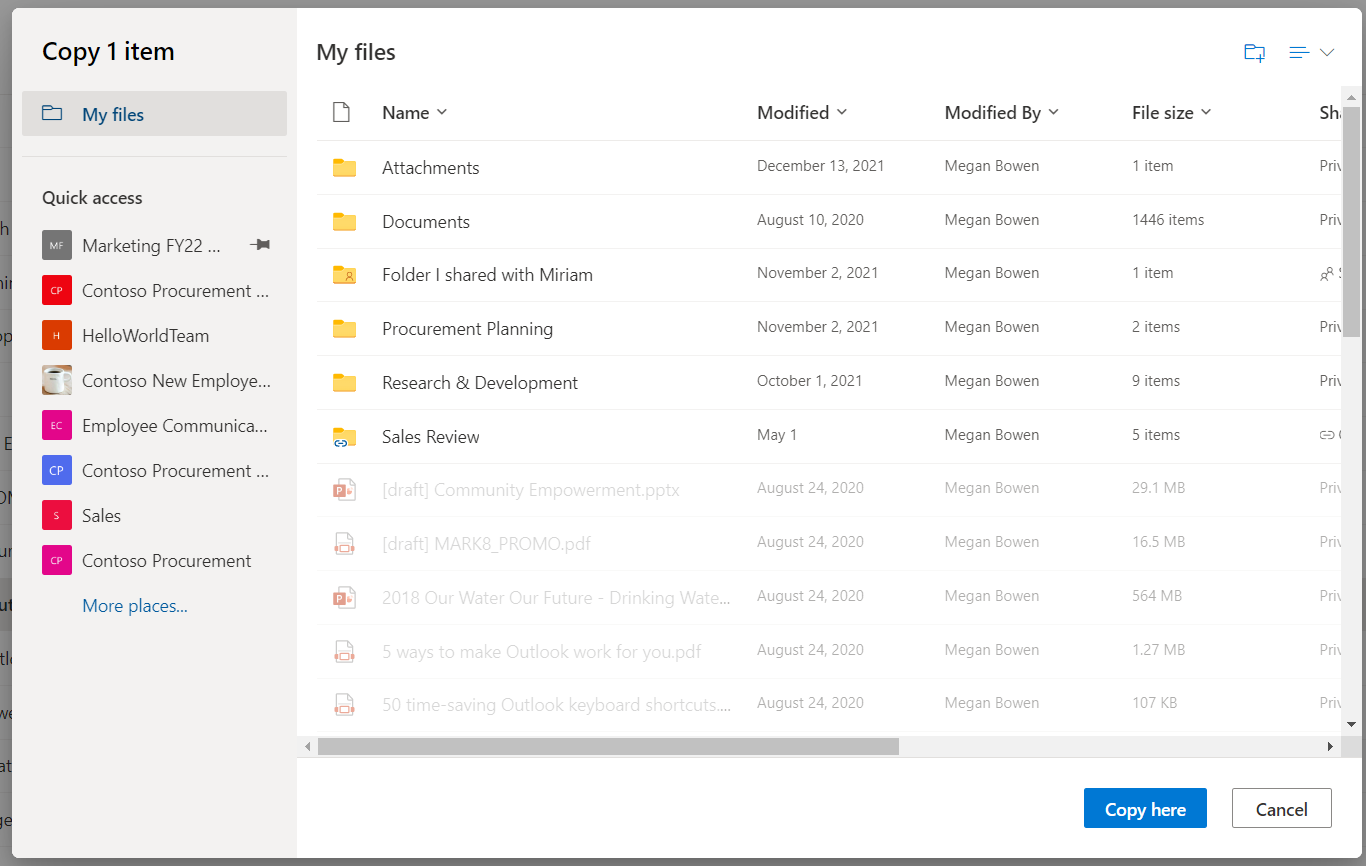
Different locations appear depending on where you are. For example, if you're on a SharePoint site, you'll see your current library, your OneDrive, and other sites. Select More places... to see the site you want.Note
- If you don't see any other sites listed when you copy items, your organization doesn't allow copying across sites.
- If you're a SharePoint admin or global admin for your organization, see Allow or prevent custom script to learn how to enable cross-site copying in the SharePoint admin center.
- If you don't see the site you're looking for in the list of sites in the left navigation or when you select on More places... link, you can navigate to the site and use Pin to Quick Access to ensure it appears in the left navigation of the Move/Copy dialog.
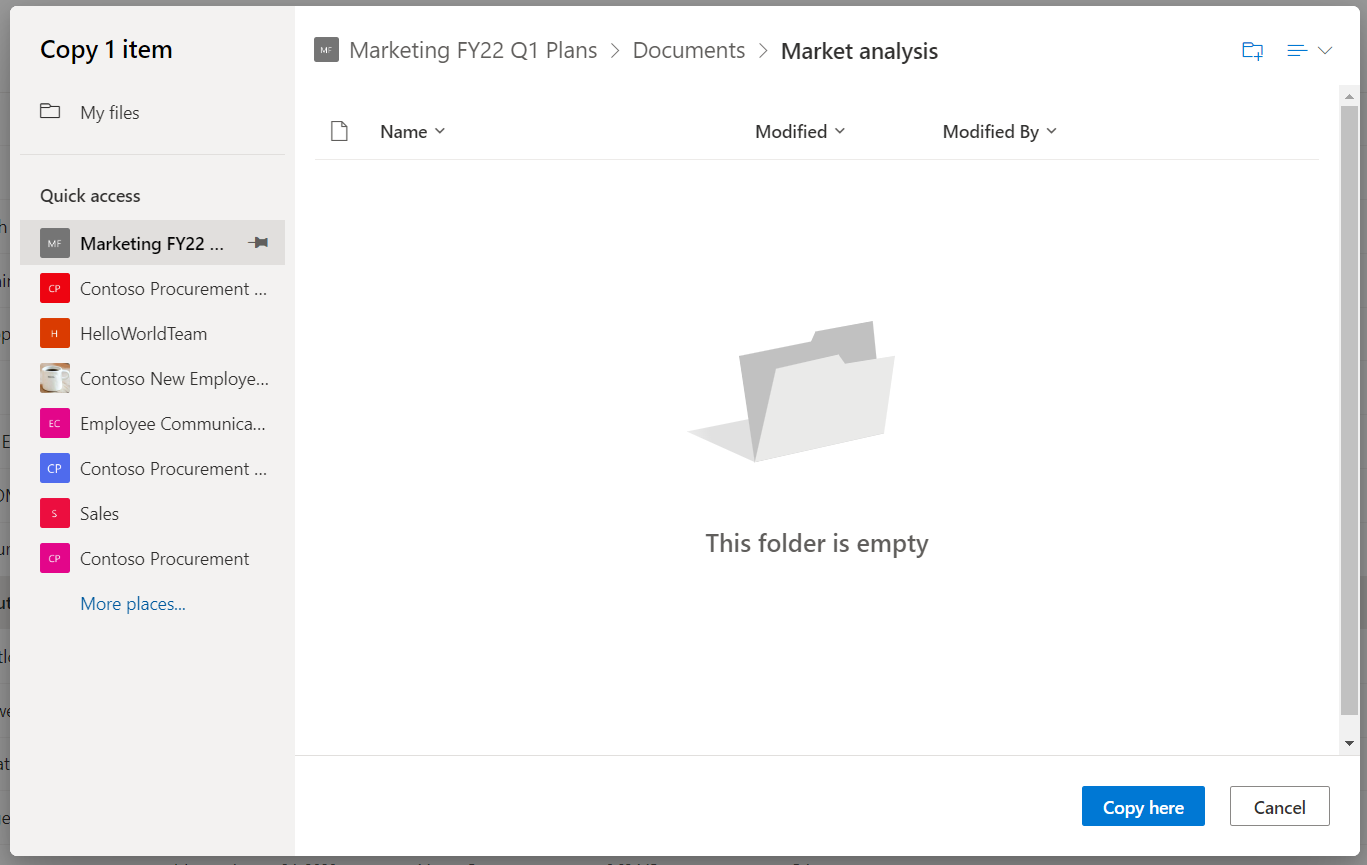
Select the location where you want the items to go, then select Copy here to start copying the items.
Note
- You can copy up to 500 MB of files and folders at a time using the online portal. To copy larger files or files totaling more than 500 MB, use File Explorer. For more information (using OneDrive to OneDrive for work or school as the example), refer to Move files from OneDrive to OneDrive for work or school.
- When you use Copy to with documents that have version history, only the latest version is copied. To copy earlier versions, you need to restore and copy each one. For more info about versioning, see Enable and configure versioning for a list or library.
Need more help?
Account support. For help with your Microsoft account and subscriptions, visit Account & Billing Help.
Technical support. For technical support, select Contact Microsoft Support below, enter your problem and select Get Help.
Mobile users can contact Support by opening the OneDrive app and gently shaking your device.
Community support. Communities help you ask questions, give feedback, and hear from experts with rich knowledge. Ask the Microsoft Community. Do not disclose personal or sensitive information in public forums.