
When someone transfers a call to you in Teams, or when a call is routed to you through your organization's virtual agent, the person or system that sent you the call can pass along context to help you take over the conversation. Teams shows this context to you in two places:
- A short call topic appears on the incoming call screen, before you answer.
- After you answer, a Context button appears in the call controls. Select it to open a context pane next to the call window, with the caller's details and any notes from the previous part of the call.
You don't need to turn anything on. The Context button appears automatically whenever context is available for a call you receive.
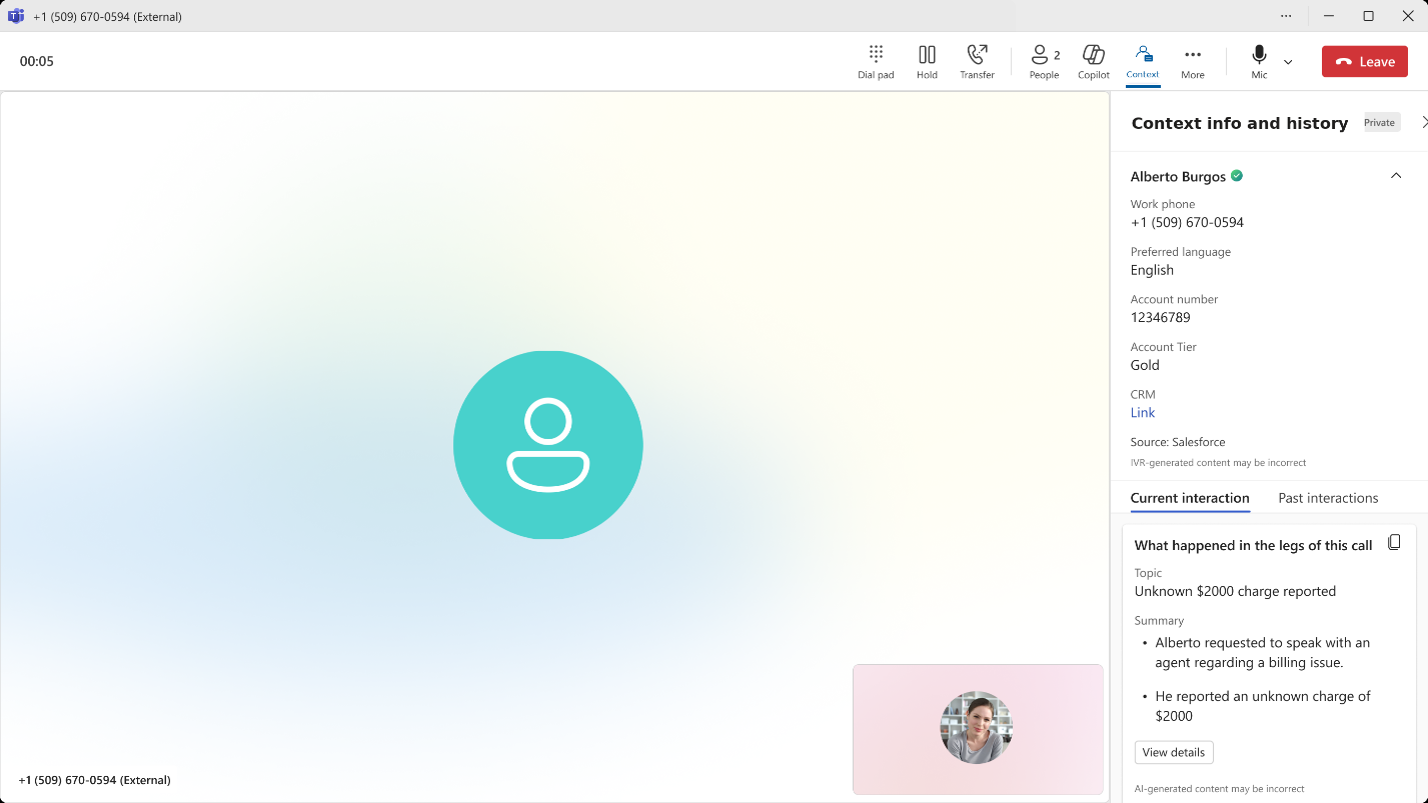
What you might see
The exact information shown depends on what the source of the call provides. You might see any of the following:
- Call topic. A short description of what the call is about.
- Call summary. A recap of the conversation so far.
- Caller details. The caller's name, phone number, whether they've been verified, and any reference details such as an account or record ID.
- Screen pop link. A link to open the caller's profile record in another app, if one was provided.
- Additional details. Information specific to the call, such as the caller's reason for calling, the language they prefer, or other notes.
Some calls show only a topic. Others show a full pane with summary, caller details, and links. If a call has no context attached to it, the Context button doesn't appear and you see the standard call window.
Where context comes from
The context shown on your screen comes from whoever, or whatever, handed the call to you. This can be:
- Another Teams user who chose to share a summary when transferring the call.
- Your organization's virtual agent, when the call is forwarded to you after the caller has interacted with it.
The look and content of the pane are the same in either case, so you can take over the call the same way regardless of the source.
Opening and closing the pane
The Context button stays in the call window for the whole call. Select it to open the context pane, and select it again to hide the pane. You can open and close it as often as you need while you talk.
When the call ends
Call context is shown for the duration of the call only. When the call ends, the pane closes and the information is no longer available in your call history.